AI for Detecting Phishing Websites (2026): A Simple Guide for Adults 45+
By Rado
You open an email from “your bank” and the logo looks perfect. The link looks close, too. Is it safe to click? You don’t need to be a tech expert to stay secure; you just need a few smart habits and the right tools. In this guide, you’ll learn what modern phishing looks like, how AI can spot fake websites faster than any human, and the simple steps that protect your accounts and your peace of mind. We’ll keep it practical, clear, and focused on what you can do today.
What exactly is a phishing website and why does it fool smart people?
You get an email that looks like your bank. The logo is crisp. The tone sounds right. There is a tidy blue button that says “Verify your account.” You hover, you hesitate. Is this safe?
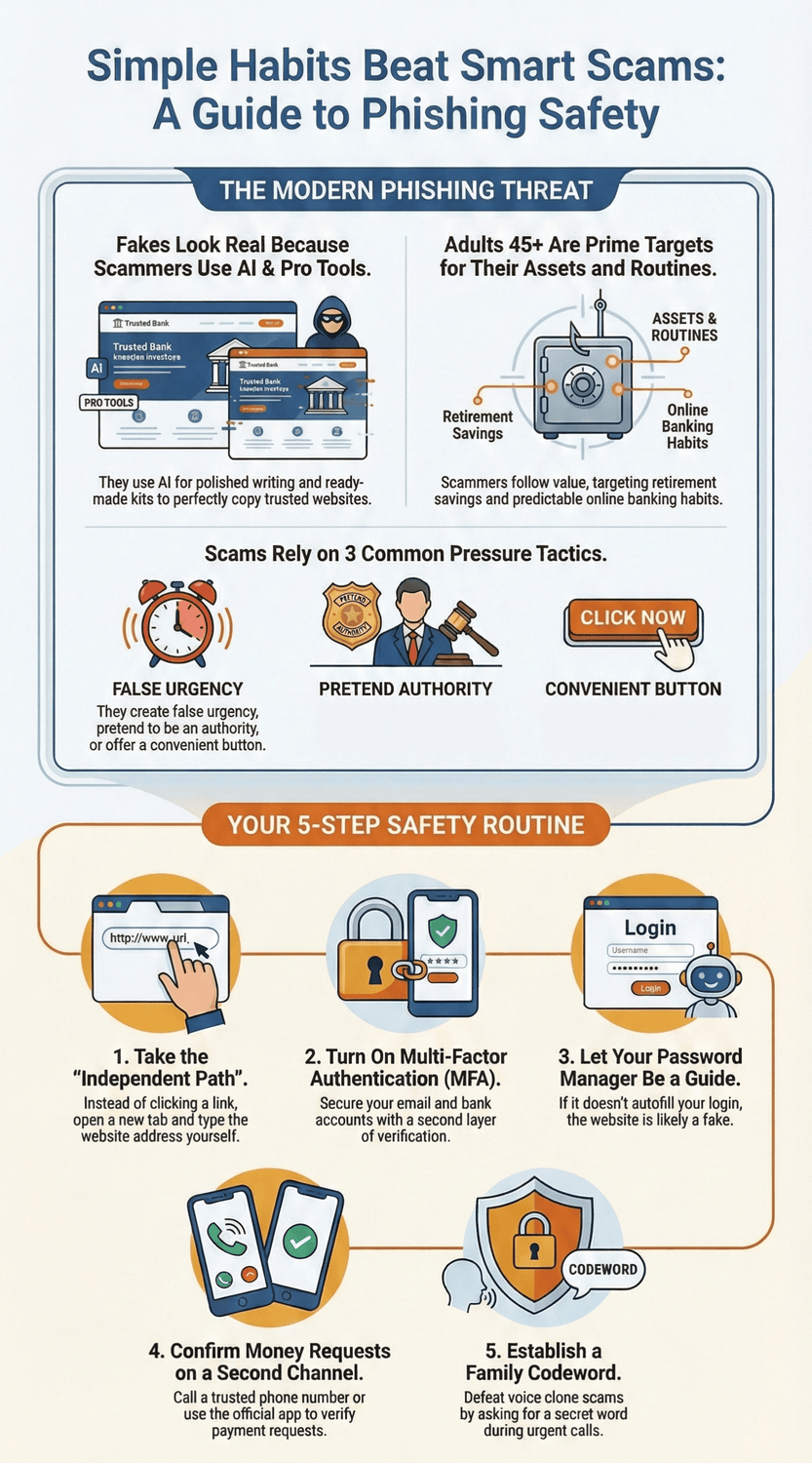
A phishing website is a fake page built to trick you into handing over something valuable. That might be your password, card number, one‑time code, or even permission to install malware. Government experts describe phishing as a social tactic where criminals pose as a trusted brand to make you click or type what they want (CISA).
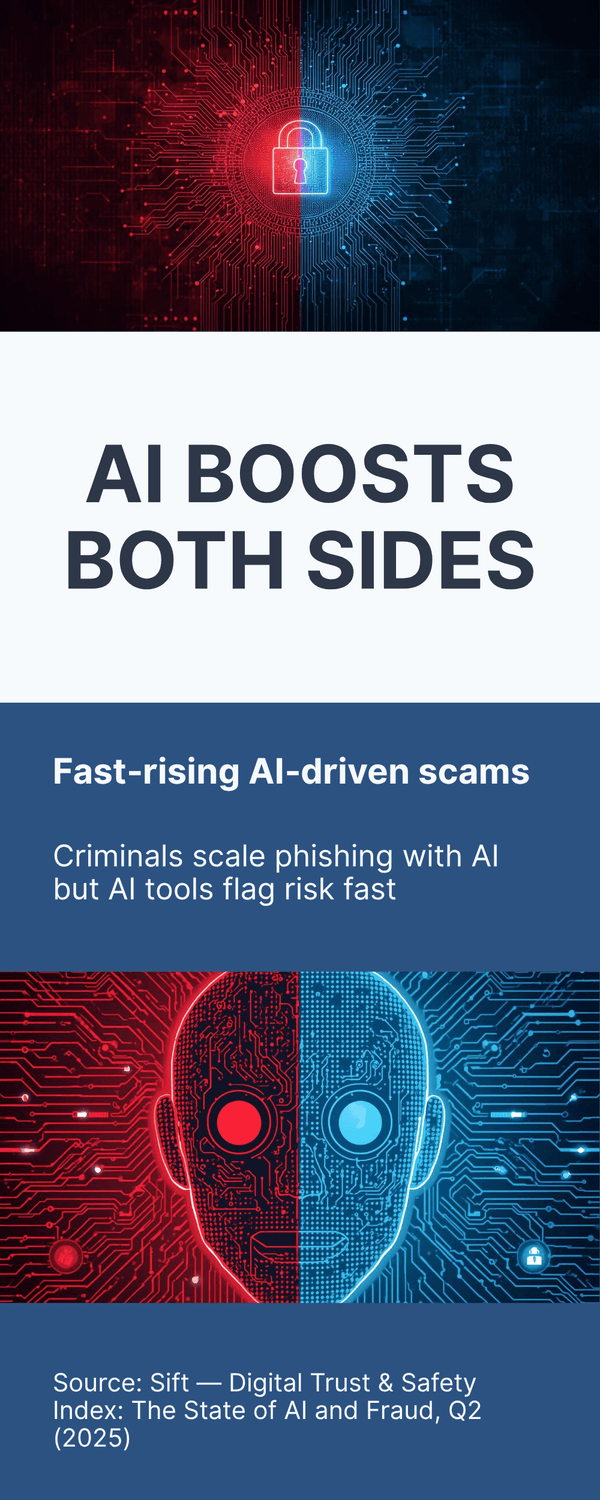
Why does it work so well in 2026? Today’s scam sites borrow the real brand’s colors, fonts, and layout. They can copy a sign‑in screen in minutes. Some even use your name or recent purchases to feel legitimate. And because many criminals now use AI to generate clean, friendly copy, the old clue of “bad grammar” isn’t reliable. Recent industry data shows AI‑enabled schemes scaling fast, with phishing reports jumping sharply as kits and automation spread (Sift, 2025).
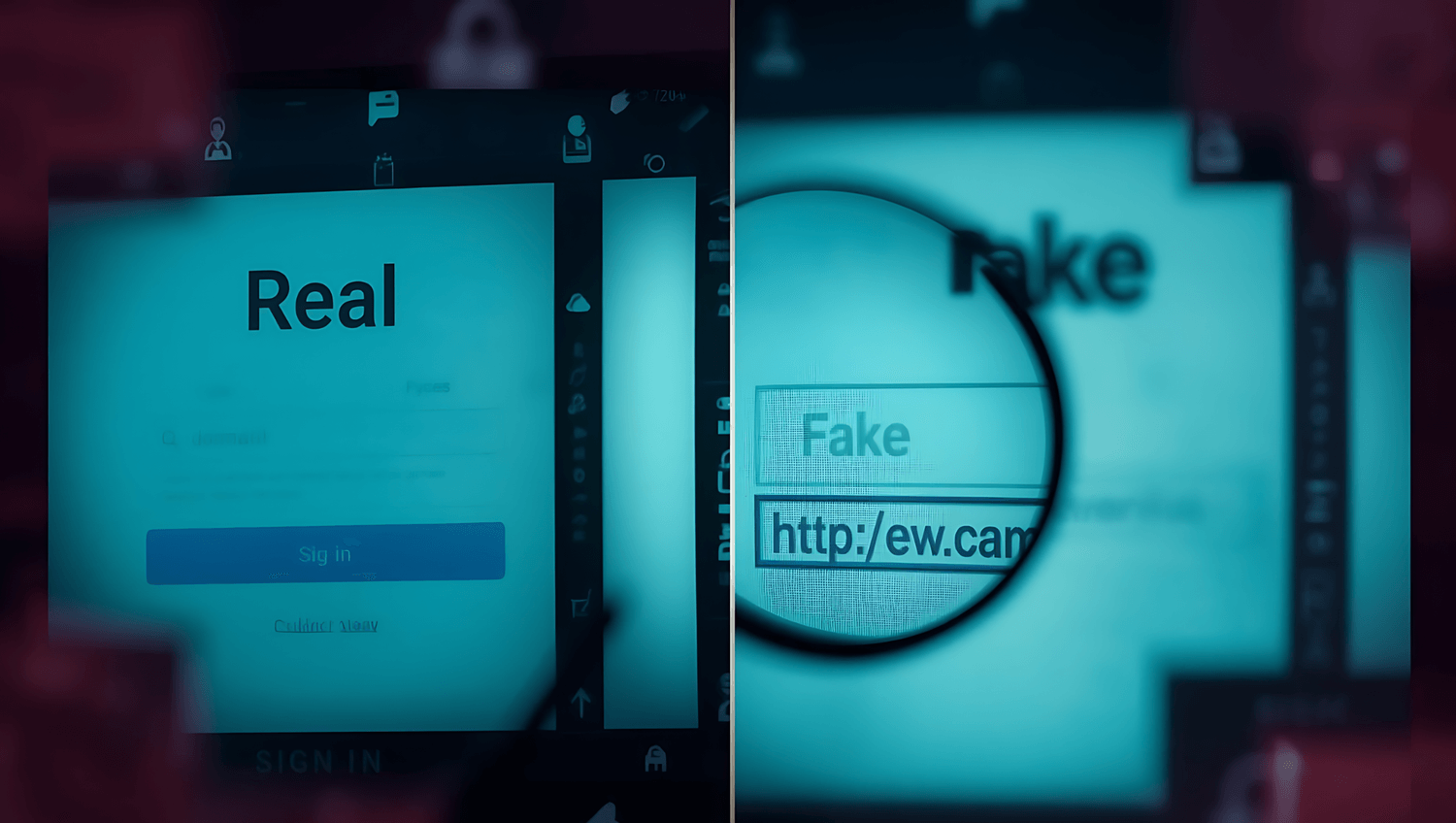
You might be wondering, “If I’m careful, shouldn’t I notice the difference?” Often the only difference lives in the address bar. The URL might swap a single letter, add an extra word, or use a look‑alike domain. On a phone, that detail can be hard to see. It’s normal to feel unsure for a moment. That pause is good. Use it.
What are phishers after? Two big goals:
Credentials and access. Once a password or code is stolen, criminals can drain accounts or reset other logins. The FBI notes that phishing and spoofing remain among the most common cybercrimes reported each year (FBI IC3, 2025).
High‑value payments. Some scams push you toward urgent transfers or fake “security” steps that move money out of your reach. Older adults suffer disproportionate losses when these succeed, a pattern highlighted in recent summaries of federal data (AARP, 2025).
So, how do these sites trick our judgment? They lean on three pressure points:
Urgency: “Your account will be closed in 2 hours.”
Authority: “Security Operations Team” or a bank‑style sender name.
Convenience: a single shiny button that seems faster than opening your app.
Ask yourself: Who benefits if I rush? What would happen if I ignored this for 24 hours? How else can I confirm this request without clicking here?
Practical check: treat links in email and text as suspect by default. If a message says to fix a problem, open a fresh tab and type the company’s address yourself or use your saved bookmark. You’ll reach the real site with no guesswork. If anything looks off, stop and call the number on the back of your card.
The Key Takeaway
A phishing website is a convincing mimic designed to separate you from your money or account access.
Slow down, check the address bar, and take the independent path to the site.
That simple habit beats most scams before they start.
Why are fake sites so convincing now?
At the laptop: A “delivery issue” email pops up while you sip coffee. The logo looks right. The colors match. The page you open even shows a familiar tracking layout. For a second, it feels normal. That second is what scammers count on.
Here’s the short version: criminals now build believable websites in hours, not weeks. Generative AI writes clean, brand‑style text. Phishing kits copy real layouts and menus. Domain sellers let anyone register a look‑alike address for a few dollars. Add a padlock in the browser bar and most people relax. You can be careful and still get fooled. It’s normal to feel that way.
So, what changed?
1) Design at the push of a button. AI tools draft headlines, help text, and support messages that sound polite and on brand. The old clue of broken English shows up less. You might be wondering, if the text looks professional, how can I tell? Start with the address bar and who sent the link.
2) Kits lower the skill bar. Ready‑to‑use phishing kits include logo packs, CSS, and scripts for stealing passwords and one‑time codes. A beginner can spin up a clone sign‑in page in minutes. That speed makes today’s scams feel current, not sloppy.
3) Look‑alike domains. Tiny changes hide in plain sight: paypaI.com with a capital “i,” bank‑secure‑verify[dot]com, or a country code that is easy to miss on a phone. On small screens the full address is often truncated. Ask yourself, what exact domain am I on, and how did I get here?
4) The padlock illusion. HTTPS only means the connection is encrypted. It does not prove the site is legitimate. Scammers get free certificates in minutes. If a page pressures you to log in or pay urgently, the padlock is not a green light.
5) Personalization at scale. AI can tailor messages with your name, city, recent purchase category, even the right time of day. That context feels familiar and lowers your guard. It’s fair to ask, would my bank use this tone, or ask for this much information, in this way?
6) Blended attacks. Email plus text plus a quick phone call from a voice clone creates urgency and “proof.” The fake site then closes the trap. If a stranger rushes you to act, pause and switch to a channel you trust.
7) Trust‑by‑association cues. Fake footer badges, copied privacy pages, and live chat widgets give a sense of legitimacy. Some even embed a real support FAQ while skimming your inputs in the background.
Practical signs you can spot quickly:
The link was the starting point. You did not type the address or use your saved bookmark.
The URL adds extra words that don’t match the brand’s real domain.
The page asks for unusual data like full card details for a “security check.”
The tone pushes urgency or embarrassment. “Your package is held due to unpaid duty.”
You are not alone if these tricks have worked on you or someone you know. The key is to build a small habit that interrupts the rush.
The Key Takeaway
Today’s fake sites look real because criminals use the same design and AI tools as honest companies.
Do not trust looks. Trust the path.
Type the address yourself, check the exact domain, and ignore urgency until you verify through a known channel.
Who is most at risk and why adults 45+ are targeted
You are paying a bill while dinner cooks. A text says your package is on hold. A minute later, an email from your “bank” warns of a locked account. Two small nudges, right when your attention is split. That timing is not an accident.
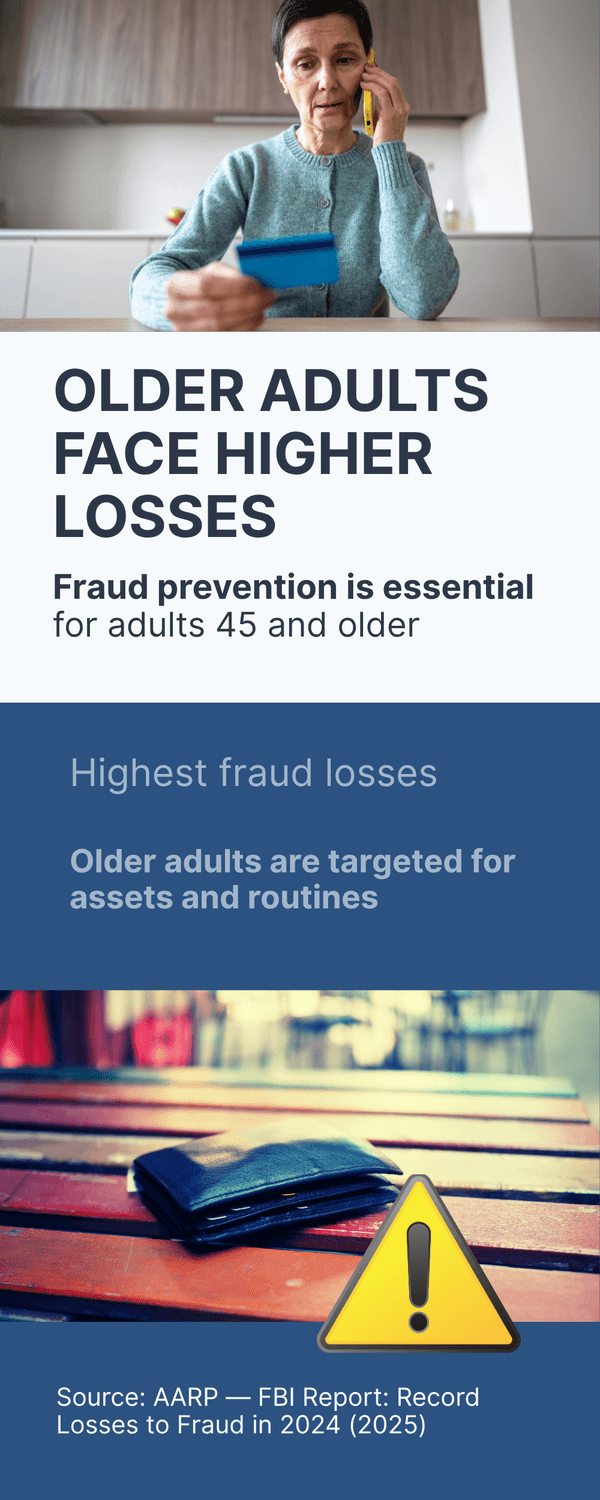
Adults 45+ are prime targets because scammers follow value and routine. Retirement savings, steady income, and predictable bill cycles draw attention. At the same time, criminals know many people still rely on email and phone for important tasks, which makes urgent messages feel normal. Reports show older adults lose more when scams succeed, especially with account takeovers and payment redirects (AARP (2025)).
Why this group gets picked on:
Higher value accounts. Investment and retirement balances make a single successful phish very profitable. Business email compromise and payment fraud often start with a simple sign in page copy (FBI IC3 (2024)).
Trust signals that feel familiar. Bank tone, parcel notices, and tax language mirror real life. If you regularly handle banking by email reminders, a forged notice blends in. You might be wondering, would my bank ever ask me to log in from a link in an urgent email? It is fair to question that.
Convenience beats caution. When busy, people click the closest path. Scammers count on this. It is normal to feel rushed. Build a reflex to pause, breathe, and take the independent path instead.
Lower use of protective tools. Password managers and security keys are less common in some age groups, which means more password reuse and easier account takeovers. Consumer safety guidance calls for broader adoption of MFA and safer defaults (CISA (2024)).
Blended message tricks. A text warms you up, an email carries the link, and a quick phone call with a voice clone seals the story. That mix feels real. Ask yourself, who benefits if I act in the next five minutes? How else can I verify without the link? (AARP (2025)).
Common lures aimed at 45+:
Banking alerts: “Suspicious login, verify now.”
Parcel duties: “Pay small fee to release package.”
Tax or benefits: “Refund available, confirm details.”
Investment pitches: “Limited time bond at 8%.”
Tech support refunds: “We sent too much, please return.”
Simple moves that flip the odds:
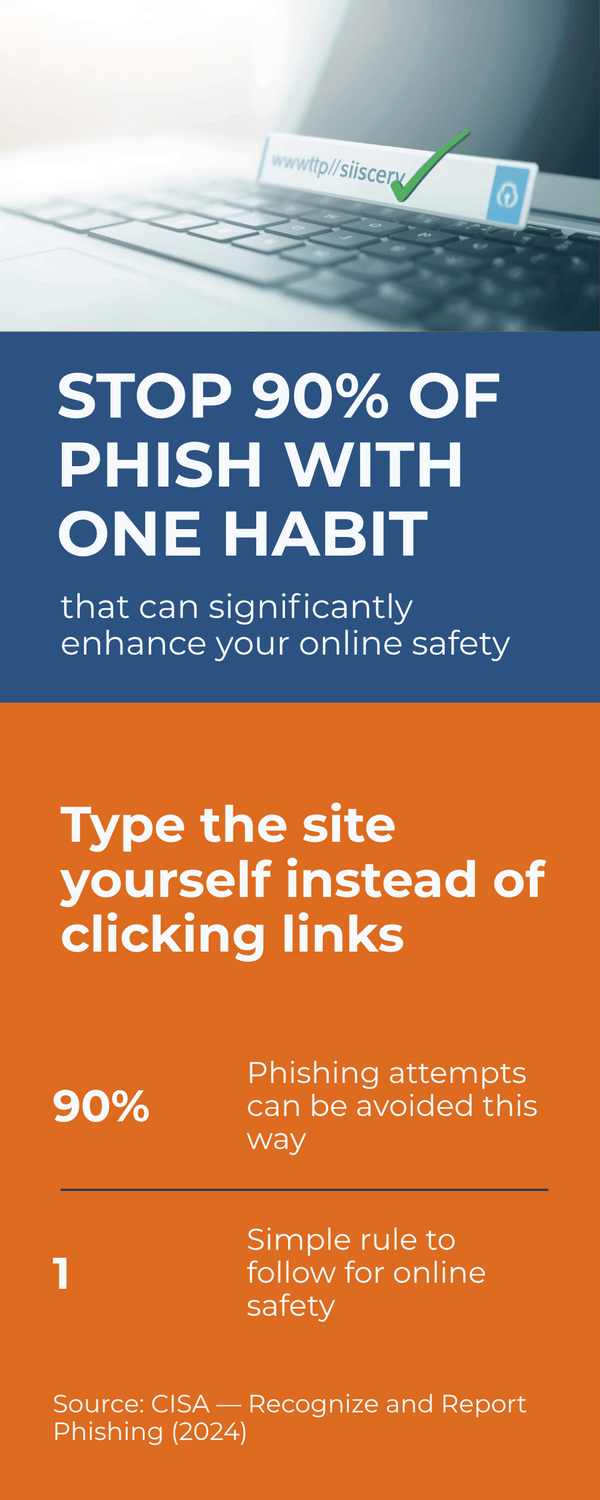
Independent path rule: type the address or use a saved bookmark for banks, taxes, and shopping (CISA (2024)).
Turn on MFA everywhere: email first, then banking and cloud storage. App based codes or a security key are best (Google Safety Center (2024)).
Create a family codeword: if a call or text feels urgent, ask for the codeword before any action (AARP (2025)).
Use alerts: set bank and card alerts for transfers and new payees. The extra ping buys time (FBI IC3 (2024)).
It is normal to feel targeted when you read this. Remember, you do not need to spot every fake. You only need a short pause and a safer path.
The Key Takeaway
Adults 45+ are targeted for their assets and routines.
Counter with habits that slow the rush: type addresses yourself, turn on MFA, and verify urgent requests through a known number before you act.
How AI actually detects phishing websites (plain language)
You paste a sketchy link into a checker. In a second, it says “Unsafe.” What happened behind the scenes?
Modern tools do not rely on one clue. They combine many small signals, the address, the page layout, the words on the page, even how the form behaves, and let machine learning weigh those signals together. That blend makes it harder for criminals to hide (CISA (2024)).
What signals does AI look at?
The URL itself. Models score patterns such as odd subdomains, extra hyphens, suspicious keywords, and brand lookalikes (“paypaI” with a capital i). They also check domain age and hosting history; brand‑new domains carrying login forms are a red flag (Google Safe Browsing (2024)).
The page design. Computer vision compares logos, colors, and layout against known brand templates. If a page visually imitates a bank sign‑in while living on a different domain, the score rises (Microsoft Defender SmartScreen (2024)).
Form behavior. Scripts watch for hidden fields, off‑site data posts, and fields that ask for unusual data, like full card numbers for “security checks.” Automated sandboxes load the page safely and observe what it tries to do (CISA (2024)).
The language on the page. Natural language processing flags pushy phrases and social‑engineering patterns, urgency, threats, and fake authority. It also notices mismatches, like a “shipping fee” page asking for email credentials (Sift (2025)).
Reputation and crowdsourcing. Systems cross‑check live feeds of known bad sites and user reports. If many people hit “report” on a new URL, blocklists update fast (Google Safe Browsing (2024)).
Why AI helps you, practically:
It spots tiny patterns humans miss, especially in long or shortened links.
It adapts as scammers change tactics, because models retrain on fresh data.
It reduces false alarms by combining many weak clues into a stronger verdict.
You might be wondering, “Can I just trust the green check mark?” It is normal to want a simple answer. Treat scanners as strong hints, not final truth. Ask yourself: How did I arrive here, from a link, or by typing the address myself? What would it cost me to verify through my saved bookmark instead?
Two minute safe check with AI tools:
Paste the link into a reputable link checker and review the verdict (Google Safe Browsing (2024)).
Open a fresh tab, type the company’s real address, and navigate to the page from the site menu.
If payment or login is requested, use a password manager. If it does not autofill, pause and recheck the domain (CISA (2024)).
It is fair to ask, “What about the padlock?” Remember, HTTPS only encrypts the connection. It does not prove the site is genuine (CISA (2024)).
The Key Takeaway
AI combines many small clues, URL, visuals, wording, and behavior, to score risk quickly.
Use scanners to inform your judgment, then take the independent path to confirm before you log in or pay.
Quick checklist before you click any link
You are paying a bill when a “verify your account” email appears. The button looks neat and official. Do you tap it? Take sixty seconds and run this checklist first.
1) Pause and hover. On a computer, hover over the button or link to see the real address. On a phone, press and hold. Do the domain and brand truly match? If you see odd subdomains or extra words, stop (CISA (2024)).
2) Use the independent path. Instead of clicking, open a new tab and type the site yourself or use a saved bookmark. This single habit avoids most traps (CISA (2024)).
3) Inspect the full domain. Look for subtle swaps like paypaI.com with a capital i, or brand‑name plus extra words like bank‑secure‑verify dot com. Ask yourself, did I land on the official domain I know? (Google Safe Browsing (2024)).
4) Treat the padlock as neutral. HTTPS only encrypts the connection. It does not prove the site is genuine. Do not let the padlock override your other checks (CISA (2024)).
5) Watch for urgency language. “Act now,” “account closed,” “final notice,” or small fees to “release” a package are classic pressure hooks. Real companies rarely demand instant action by email or text (AARP (2025)).
6) Check what the page asks for. Routine tracking should not ask for full card numbers or email passwords. Unusual requests are a red flag (Microsoft Defender SmartScreen (2024)).
7) Use a link scanner when unsure. Paste the URL into a trusted checker and read the verdict. If it is flagged, do not try to “double check” on the same page. Leave and verify from your bookmark instead (Google Safe Browsing (2024)).
8) Let your password manager help. If the manager does not autofill on a login page you expected, pause. It may be a clue you are not on the right domain (Google Safety Center (2024)).
9) Confirm through a second channel. For any money or account change, call the number on the back of your card or the support line on the official site. Do not use numbers inside the email or text (CISA (2024)).
10) Trust your hesitation. That tiny “something feels off” is useful. It is normal to be unsure. Give yourself permission to slow down.
You might be wondering, do I need all ten steps every time? No. Use one or two as a quick screen, then take the independent path when stakes are high. What would it cost you to verify for sixty seconds? That small delay can save hours of pain.
The Key Takeaway
Slow the click. Hover, type the address yourself, and double check requests through a known channel.
The habit is simple, and it works.
Which tools can scan links and pages for you?
A friend texts you a “bank update” link. You feel that tiny hesitation. Instead of guessing, you let a tool check it first. Use two layers. First, a quick link or page scanner. Second, protections that run in the background while you browse. The goal is to catch obvious fakes fast and reduce day‑to‑day risk without extra work.
Fast checkers you can use on demand
Google Safe Browsing. Paste a URL into the transparency report and see whether Google has flagged it recently (Google Safe Browsing (2024)).
Microsoft Defender SmartScreen. Built into Edge and Windows, it warns on known malicious sites and files (Microsoft Defender SmartScreen (2024)).
VirusTotal. Aggregates results from many scanners. Paste a URL to see consensus and recent reports. Treat red results as high risk, but remember that “clean” does not prove safe if the page is brand new (VirusTotal (2024)).
Brand‑focused checkers. Some services scan for look‑alike domains and phishing kits targeting banks and retailers. Use them as a second opinion if a message claims to be from a specific brand (CISA (2024)).
Protections that run quietly in the background
Browser protections on. Keep built‑in safe browsing and SmartScreen style checks enabled. Update the browser so reputation lists stay current (Microsoft Defender SmartScreen (2024)).
Password manager autofill. Managers match exact domains. If your manager refuses to autofill, that is a clue you are on the wrong site (Google Safety Center (2024)).
DNS or router filtering. Services that block known bad domains at the network level add a useful backstop for home devices (CISA (2024)).
Email security settings. Turn on spam and phishing protection in your email provider. Review quarantined items instead of clicking from the inbox when you are unsure (CISA (2024)).
Pros and cons to keep in mind
Real time helps, but not perfect. New scam domains pop up by the minute. A site may look “clean” simply because it is too new to be listed. When stakes are high, still take the independent path and type the address yourself (CISA (2024)).
False positives happen. A legitimate but obscure site can be flagged. If a warning appears on a site you trust, verify the exact domain and reach it from your saved bookmark.
Privacy choices. Some tools share submitted links to improve protection for others. If that concerns you, read the service’s privacy page before using it (VirusTotal (2024)).
How to use tools without overthinking
If a link arrives by email or text, paste it into one checker. If it is flagged, stop and verify through a known channel.
If it looks clean, still open a new tab and type the site yourself. Do not rely on a single green check.
Let browser protection, a password manager, and DNS filtering run all the time so the default is safer.
“Which single tool is best?” That is a fair question. No tool is perfect. A simple combo works well: one quick checker plus your browser protections and a password manager.
The Key Takeaway
Use scanners for a fast read, but make the independent path your default.
Keep built‑in protections on, and let your password manager warn you when a domain does not match.
Step by step: Verify a suspicious login or payment page
You are about to pay an invoice when an email says your account is locked. The link looks perfect. Your heart speeds up a little. What now?
Here is the short version: switch from the link you were given to a path you control, then confirm the request using information you trust. These steps take two minutes and save you hours of cleanup if it is a scam.
1) Stop and make your own path. Do not click the link. Open a new tab and type the company’s address yourself or use a saved bookmark. This simple move dodges most traps (CISA (2024)).
2) Check the exact domain. On the page you opened yourself, sign in the normal way. Before you type anything, read the full domain name. Tiny swaps like paypaI.com (capital i) or extra words are common tricks (Google Safe Browsing (2024)).
3) Let your password manager decide. If your manager recognizes the domain, it will autofill. If it refuses to fill, pause. That is a strong hint you are not on the site you think you are (Google Safety Center (2024)).
4) Look for context mismatches. Does a shipping page ask for your email password? Does a “security check” want full card details? Those are red flags. Real companies rarely ask for broad credentials outside their normal flow (Microsoft Defender SmartScreen (2024)).
5) Confirm through a second channel. Use the number on the back of your card or the official support page you navigated to yourself. Do not call numbers in the message. Ask the agent to confirm the alert before you do anything (CISA (2024)).
6) For payments, add a two person or two channel rule. If money is involved, require a second approval or a call to a known contact. Businesses use this to stop business email compromise; you can adapt it at home for big payments (FBI IC3 (2024)).
7) Turn on safeguards if you have not already. Multi factor authentication on email and banking, account change alerts, and sign in notifications shrink the damage even if a password leaks (CISA (2024)).
8) Still unsure? Use a link checker as a final opinion. Paste the original URL into a reputable checker. If it is flagged, stop there and report it. If not, remember that “clean” can just mean “new.” Trust the independent path over any single green check (Google Safe Browsing (2024)).
You might be wondering, isn’t this overkill for a simple message? It is normal to feel that way. Ask yourself, what would it cost you to verify for two minutes? What would it cost if you were wrong?
The Key Takeaway
Move off the link to a path you control, confirm through a trusted channel, and let your tools back you up.
When money or logins are at stake, a short pause is the safest choice.
What businesses do with AI and what you can borrow at home
Your bank flags a transfer and asks you to confirm before it leaves your account. Annoying? A little. But that pause is the point. Behind the scenes, businesses run layers of AI that look for odd behavior and ask for a second check when something feels off.
Companies use machine learning to spot patterns that do not match your usual habits, then require extra verification. You can copy the same ideas at home in simple ways.
How businesses catch fraud with AI
Anomaly detection. Systems learn what normal looks like for each user or device. If your account suddenly logs in from a new country and tries to add a payee, the risk score jumps. Many banks blend device reputation, location, and past behavior to make these calls (Microsoft Security (2024)).
Risk based authentication. Instead of always asking for the same steps, the site increases checks only when risk is high. That might mean a one time code, an app prompt, or a short delay before a large transfer clears (CISA (2024)).
Domain and brand monitoring. Security teams scan the web for look alike domains and cloned login pages that target customers, then work with providers to block or take down the fakes (Google Safe Browsing (2024)).
Content and link analysis. Email gateways use natural language processing to flag urgent payment language, spoofed display names, and links that redirect to risky domains. Suspicious messages get quarantined for review (CISA (2024)).
Two channel verification for payments. High value transfers are confirmed through a different route, like a phone call to a known number or an in app message. This breaks the attacker’s script if they only control email (FBI IC3 (2024)).
Borrow the best parts at home
Turn on multi factor authentication for email, banking, cloud storage, and shopping accounts. App based prompts or a security key are strongest (Google Safety Center (2024)).
Set alerts for new payees, transfers, and sign ins. A quick notification gives you time to stop fraud in motion (FBI IC3 (2024)).
Use the independent path for any login or payment. Type the site yourself or use a bookmark instead of tapping links in messages (CISA (2024)).
Adopt a two channel rule for money moves. Before sending funds or changing payees, confirm by calling a known number or using the official app message center (CISA (2024)).
Let a password manager decide. If it does not autofill, stop and recheck the domain. Managers match exact addresses and can reveal look alikes (Google Safety Center (2024)).
You might be wondering, will all these prompts slow me down? It is normal to worry about friction. Try this framing: a ten second prompt that stops one bad transfer saves hours of recovery later. What small alerts and checks would make you feel safer without getting in your way?
The Key Takeaway
Businesses use AI to notice when something is out of character, then ask for a second check.
Copy the mindset at home.
Turn on MFA and alerts, confirm big payments through a second channel, and let your password manager and bookmarks keep you on the real site.
If you clicked the link—now what?
You tapped the “verify” button before you realized. A login box popped up, maybe you even typed your email and password. Your stomach sinks. What now?
Act fast, in this order. Disconnect from the risky page, secure the account, check for damage, then report it. You can recover from most slip ups if you move quickly.
1) Close the tab and disconnect risky extensions. Exit the page right away. If a strange download started, cancel it. Consider disabling unfamiliar browser extensions until you finish your checks (CISA (2024)).
2) Change the password on the real site. Open a fresh tab and type the company’s address yourself. Sign in and change the password immediately. If you reused that password elsewhere, change it there too. Turn on multi factor authentication while you are at it (Google Safety Center (2024)).
3) Invalidate sessions and check recent activity. Many services let you sign out of other devices and view logins or changes. If you see unfamiliar locations or new payees, lock the account and contact support (Microsoft Security (2024)).
4) If you entered your card or bank details, call now. Use the number on the back of your card or the official support page. Ask to freeze the card or monitor for fraud. Quick reporting helps you limit losses and dispute charges (FTC (2024)).
5) Run a reputable security scan. Use your built in security app or a trusted antivirus to check for malware if you downloaded anything by mistake. Keep your operating system and browser updated so fixes apply right away (CISA (2024)).
6) Alert your email provider and set extra protections. If the phish targeted your email, enable recovery options, add a backup code or security key, and review forwarding rules or filters that attackers sometimes set to hide alerts (Google Safety Center (2024)).
7) Watch your money and messages. Turn on alerts for transfers, new payees, and sign ins. The next 48 hours matter most. If anything looks off, contact the institution immediately (FBI IC3 (2024)).
8) Report the scam. Forward phishing emails to your provider’s abuse address and to national reporting channels. Reports help block the site for others and support investigations (CISA (2024)).
You might be wondering, will I get in trouble for a simple mistake? It is normal to feel embarrassed. You did not cause the scam. What matters is the next few minutes. Ask yourself, which account could cause the most damage if someone got in, and can I lock it down right now?
If the damage is bigger
Your employer account was involved. Notify your IT or security team immediately. Fast action limits broader risk (CISA (2024)).
You sent money by wire or crypto. Contact the bank or platform at once and file a report with the appropriate agency. Early reports raise the odds of recovery (FBI IC3 (2024)).
The Key Takeaway
Close the page, change passwords on the real site, enable multi factor authentication, and call your bank if payment details were shared.
Quick reporting protects you and helps others.
Protecting your family from the email-plus-voice clone combo
Evening phone buzz: Your “son” calls from an unknown number. The voice sounds close enough. He says he lost his phone and needs a quick payment link you just received by email. Your pulse jumps. What now?
Treat urgent calls and matching emails as a package deal from scammers. Voice clones are cheap to make, and they often come with a convincing link that leads to a fake site. A few house rules keep everyone safe.
Why this scam works now
Cloned voices sound familiar enough. Short voice samples from social media are enough to train a copy. That makes the call feel real (AARP (2025)).
Two‑channel pressure. A call plus an email or text creates urgency and “proof,” pushing you to click before you think (CISA (2024)).
Emotion overrides caution. Family emergencies are a favorite setup for imposters (FTC (2024)).
Set simple family rules before you need them
Create a private codeword. Keep it offline. If an urgent call or text arrives, ask for the codeword before doing anything. No codeword, no action (FTC (2024)).
Use a second channel for checkbacks. Hang up and call a known number, or start a new message thread to the contact saved in your phone. Do not call back numbers provided in the urgent message (CISA (2024)).
No payments from links. If money is involved, type the address yourself or use the official app. Never pay from a link sent during a call (CISA (2024)).
Agree on a pause. Teach everyone to wait five minutes before acting on any urgent request. That small gap cuts mistakes.
How to verify a suspicious family call
Ask questions only the real person would know: nickname, last shared photo, or a detail from a recent plan. A clone can mimic tone, not private context (AARP (2025)).
Check the matching email or text. Was the link the starting point? Does the domain match the real brand? Use a bookmark instead of the link (Google Safe Browsing (2024)).
If a payment or account change is requested, confirm with another relative on a separate call before sending anything (FBI IC3 (2024)).
You might be wondering, won’t this slow us down in a real emergency? It is normal to worry about that. Ask yourself, what is the harm in a two minute delay to confirm? What would it cost if the money went to a stranger? Would your family feel safer with a clear rule everyone can follow under stress?
Household checklist you can print
Our codeword is stored here: __________ .
Known numbers for call‑back: bank, mobile carriers, and two relatives.
Default rule: no payments or logins from links sent during a call. Use bookmarks or the official app.
If unsure: end the call, verify through a saved contact, and talk to a second family member.
The Key Takeaway
Pair simple rules with a short pause.
Use a codeword, confirm on a second channel, and ignore payment links sent during a call.
These habits neutralize the email plus voice clone combo.
Set-and-forget safeguards that reduce risk every day
Morning routine moment: You open your laptop, check email, pay a bill, and move on. No alarms. That quiet is not luck. It comes from a few settings that work while you live your day.
Set things up once so the default is safer. Let tools do the heavy lifting and build tiny speed bumps that stop trouble before it starts.
1) Turn on multi factor authentication everywhere
Start with email, then banking, cloud storage, and shopping sites. Use an authenticator app or a security key instead of SMS when possible (Google Safety Center (2024)). Worried about extra steps? Ask yourself, what is ten seconds compared to hours of recovery after a breach?
2) Use a password manager
Managers create and store long unique passwords and only autofill on exact domains. If it refuses to fill, that is your cue to pause and recheck the address (Google Safety Center (2024)).
3) Keep automatic updates on
Turn on auto updates for the operating system, browser, and security software. Patches close holes criminals exploit. Most attacks succeed because a fix was available but not installed (CISA (2024)).
4) Leave browser protections enabled
Safe browsing and SmartScreen style checks warn on risky sites and downloads. Do not disable them to “make something work” unless you are absolutely sure (Microsoft Defender SmartScreen (2024)).
5) Add DNS filtering at home
A family friendly DNS service can block known bad domains for every device on your Wi‑Fi. It is a quiet backstop that catches many scam links before the page even loads (CISA (2024)).
6) Set account alerts
Turn on notifications for new sign ins, new payees, and transfers. Those pings buy time to stop fraud in motion (FBI IC3 (2024)). Which alerts would help you act fast without feeling overwhelmed?
7) Create email rules that slow urgent requests
Route messages with phrases like “verify immediately,” “final notice,” or “payment required today” into a Review folder. Scammers rely on speed. Your rule gives you space to think (CISA (2024)).
8) Use standard accounts for daily work
On Windows or Mac, avoid admin accounts for routine browsing. If malware tries to install, the system will ask for approval. That extra prompt is useful friction (Microsoft Security (2024)).
9) Back up important files
Keep at least one backup that is not always connected. If a scam leads to malware or a lockout, you can restore quickly (CISA (2024)).
10) Prepare your recovery options
Add a recovery email, phone number, and backup codes for key accounts. Store them safely. If something goes wrong, you can get back in without panic (Google Safety Center (2024)).
You might be wondering, do I really need all ten? It is normal to start small. Pick two today. Which ones feel easy and protective? What would make you feel calmer every time you check email?
The Key Takeaway
Make safety the default.
MFA, a password manager, updates, browser protections, DNS filtering, and smart alerts run quietly and block most bad links before you ever see them.
Small habits, big protection
You do not need perfect tech skills to stay safe. You need a calm pause, a cleaner path, and a few tools that work quietly in the background. That is enough.
Most phishing sites rely on speed and a pretty surface. Your advantage is to slow the click, type the address yourself, and let safety features do their job. AI helps criminals copy the look of real brands, but AI also powers the scanners and browser protections that spot risky patterns fast (CISA (2024); Google Safe Browsing (2024)).
Five habits that cover most situations
Independent path first. Type the site or use a bookmark instead of tapping links in messages (CISA (2024)).
Let a password manager decide. If it will not autofill, pause and recheck the domain (Google Safety Center (2024)).
Turn on multi factor authentication. Start with email and banking; app prompts or a security key are strongest (Google Safety Center (2024)).
Keep protections on. Safe Browsing or SmartScreen style checks and automatic updates block many threats before you see them (Microsoft Defender SmartScreen (2024); CISA (2024)).
Confirm money on a second channel. Call a known number or use the official app before sending funds or changing payees (FBI IC3 (2024)).
In practice, these steps become routine, like locking your door without thinking. A short pause now prevents long headaches later.

🎓 Your "Tech Dignity" Toolkit
Ready to stop surviving the AI era and start owning it? I’ve built a library of resources specifically designed to help you stay safe, stay professional, and stay in control. Whether you want to fix a specific problem or master the whole machine, start here:
[FREE] The "Bypass the Bot" Bundle: Stop screaming at automated phone menus. Get the secret codes and scripts to reach a human every time. Download for FREE Here
Secure Your Family: Protect your loved ones from AI voice clones and deepfake scams with the Family Shield Anti-Scam Kit. Get Protected for $9
Upgrade Your Career: Use my "Strategy Sandwich" method to delegate grunt work to AI while keeping your professional edge with the Executive Director’s AI Workflow. Reclaim Your Time Here
Lock Down Your Privacy: Interrogate the "black box" and secure your data with the AI Truth & Privacy Protocol. Secure Your Data Here
Tame the Machine: Strip the "creepy" fake empathy out of AI and turn it into a silent tool with the "Strictly Business" AI Tuner. Take Control Here
The Ultimate Shortcut: Want the entire library? Secure your digital future with the Complete Mastery Collection (all products bundled for about 57% off). Get the Full Collection Here
Frequently Asked Questions
Q1) What is a phishing website, in plain English?
A fake page that imitates a trusted brand to steal passwords, codes, or payments. It often arrives via email or text with a link that looks close to the real thing (CISA (2024)).
Q2) Can I trust the padlock (HTTPS) in the browser?
Not by itself. HTTPS only encrypts the connection; criminals use it too. Always check the exact domain and how you arrived there (CISA (2024)).
Q3) What is the fastest safe way to check a link?
Use the independent path. Open a new tab, type the site yourself or use a bookmark, and navigate from the homepage. If you still want a quick scan, paste the URL into a reputable checker (Google Safe Browsing (2024)).
Q4) Are shortened links safe to click?
Treat them as unknown until expanded. Short links can hide risky domains. Use a link expander or paste the short URL into a checker first (Google Safe Browsing (2024)).
Q5) How does a password manager keep me safer?
It only autofills on the exact domain you saved. If the manager refuses to fill, pause and recheck the address. It also creates strong, unique passwords for every site (Google Safety Center (2024)).
Q6) What is a simple two minute playbook before I log in or pay?
Hover to reveal the link, type the site yourself, and let your password manager decide. If money is involved, confirm through a known number or the official app first (CISA (2024); FBI IC3 (2024)).
Q7) I clicked the link. What should I do right now?
Close the page, go to the real site, change your password, and turn on multi factor authentication. Review recent activity and enable alerts for new logins or payees (Google Safety Center (2024); CISA (2024)).
Q8) Do I need antivirus or browser protection if I am careful?
Yes. Built in protections like SmartScreen and Safe Browsing block many malicious pages and files silently in the background. Keep them enabled and updated (Microsoft Defender SmartScreen (2024); Google Safe Browsing (2024)).
Q9) Are QR codes risky?
They can be if placed in public or sent by strangers. A QR code is just a link. Use the same rules: verify the source and open the site by typing it yourself when stakes are high (FTC (2024)).
Q10) How are scammers using AI to make fakes more convincing?
Generative tools help criminals produce polished copy and look alike pages at speed, and pair emails with voice clones to raise urgency. Reports show AI driven fraud attempts increasing year over year (Sift (2025); AARP (2025)).
Q11) How do I protect older family members from the email plus voice clone combo?
Set a private codeword, agree to call back on a known number, and never pay from a link sent during a call. Verify on a second channel before any transfer (FTC (2024); CISA (2024)).
Q12) Where and how should I report phishing?
Report to your email provider and national reporting sites. Early reports help block the site and warn others. For money loss, contact your bank and file a complaint promptly (CISA (2024); FBI IC3 (2024)).
Sources
CISA — Recognize and Report Phishing (2024).
CISA — Multi‑Factor Authentication (2024).
Google — Safe Browsing Transparency Report (2024).
Google Safety Center — Authentication (2024).
Microsoft — Microsoft Defender SmartScreen overview (2024).
FBI Internet Crime Complaint Center (IC3) — 2024 Internet Crime Report (2024).
AARP — FBI Report: Record Losses to Fraud in 2024 (2025).
Sift — Digital Trust & Safety Index: The State of AI and Fraud, Q2 (2025).
Federal Trade Commission — How to Recognize and Avoid Phishing Scams (2024).
VirusTotal — Analyze suspicious files and URLs (2024).
Microsoft Security —Microsoft Security Blog (2024).