The Blank Page Cure: 5 Copy-Paste Starter Prompts for Everyday AI Tasks
By Rado
You open an AI chat window, see the huge empty box, and your mind goes just as blank.
“What am I even supposed to type here?”
If that sounds familiar, you are not alone. Researchers actually have a name for this: “blank page paralysis.” When the tool gives you no options, no menu, and just a blinking cursor, your brain has to imagine the whole request from scratch. That is tiring, especially if you already feel cautious about new tech or worry about “breaking something.”
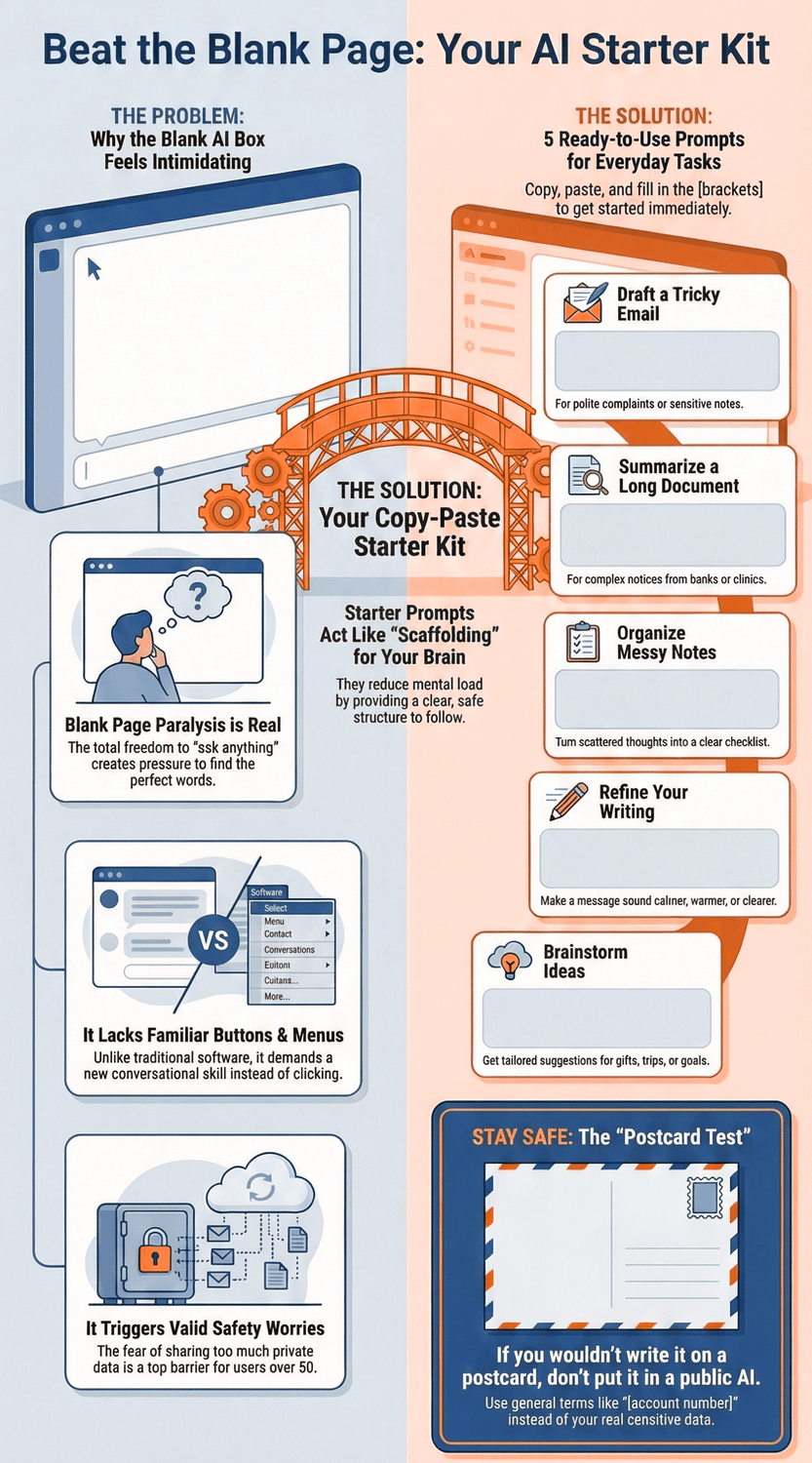
This blog is here to make that moment easier. Instead of expecting you to magically know what to ask, I will give you five simple, copy-paste starter prompts for everyday tasks, like drafting emails or summarizing long PDFs. You can treat them like templates, tweak a few words, and let the AI do the heavy lifting.
By the end, you will not just have five prompts. You will have a clear path from “I only know how to click buttons” to “I can actually talk to these tools and get useful, safe results.”
📺 Watch the Explainer Version of this Blog on YouTube
Why does an empty AI chat box feel so intimidating?
Imagine, you finally decide to “give AI a try.”
You open the app, you see one big empty box, a blinking cursor, and… nothing.
No menu. No clear options. No friendly “Start here.”
Just a blank space waiting for you to be clever.
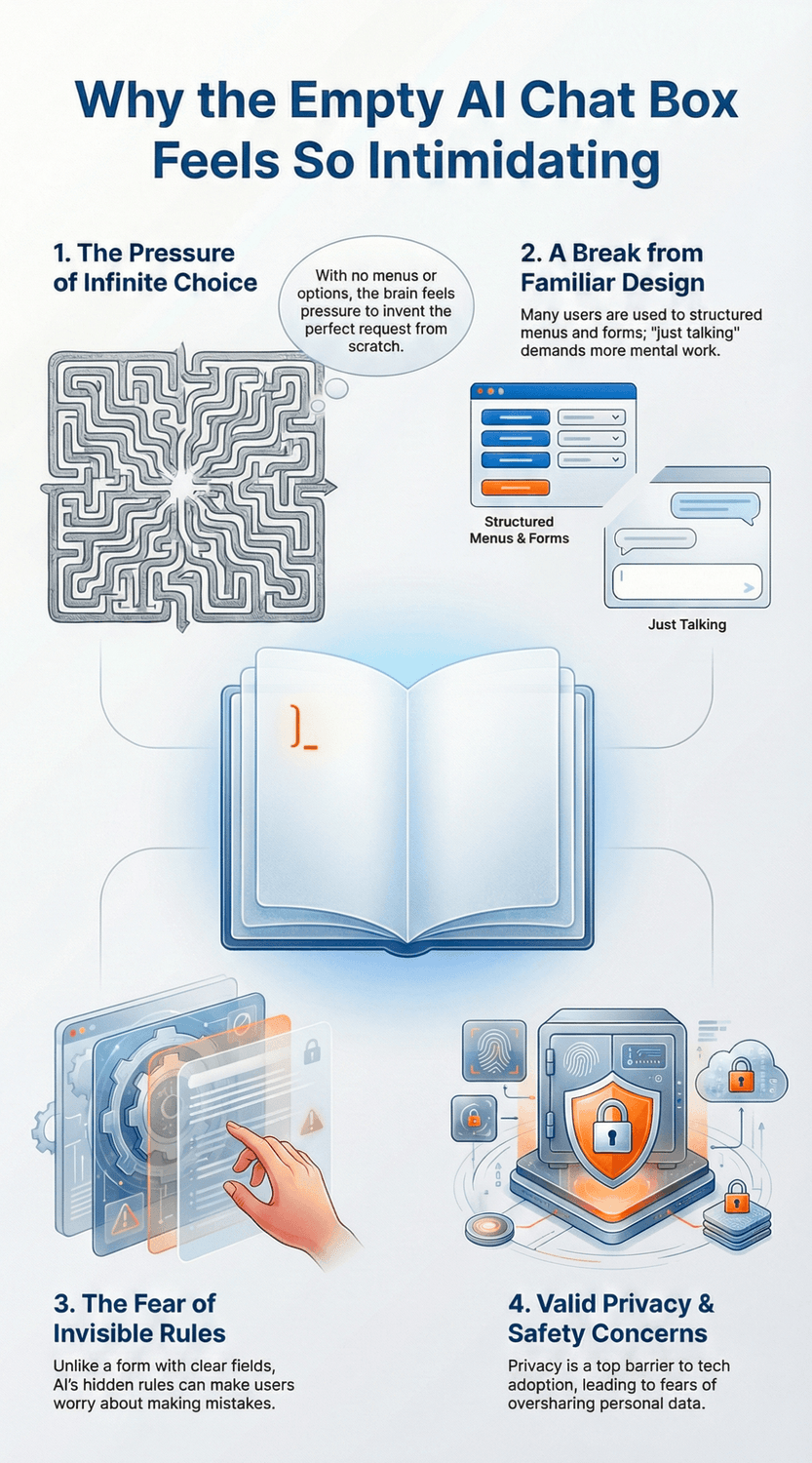
Psychologists have long noticed that the “freedom” of a blank page can actually block creativity instead of helping it. A doctoral dissertation by Joyce (2009) found that too many options can be mentally paralyzing, while a moderate amount of constraint often leads to more creative results. Too many possibilities, no clear path.
With AI chat tools, the same thing happens. You could ask it almost anything, which quietly turns into pressure to know exactly what to ask.
For many adults 45+, there is another layer on top of that. You grew up with forms, menus, and buttons. You clicked “File > Print.” You filled out boxes on a screen the same way you filled out boxes on paper. That kind of structure is familiar and, in a way, comforting.
Now the tool says, “Just talk to me. Type anything.”
That sounds simple, but it actually demands a lot of mental work. You have to imagine the task, decide what matters, put it into words, and worry whether you are “doing it right.” That is a lot to carry in your head at once.
“Is it just me? Maybe I am bad with tech.”
It is not just you. Research on older adults and online services shows that many people in their 50s, 60s, and beyond already feel cautious, especially around privacy and security. Surveys from groups like AARP (2021) found that privacy concerns are one of the top barriers to adopting new technology for people over 50.
So when you see that open box, it is not just a writing problem. It is “What if I say the wrong thing?”
“What if I share too much?”
“What if it misunderstands me and does something I cannot undo?”
There is also the fear of making an invisible mistake. With a normal form, you see each field and know what goes where. With AI, the rules are hidden. If you already worry about scams, confusing cookie banners, or shady pop-ups, of course you will hesitate before typing personal details into a tool you do not fully understand.
That hesitation is not a sign of weakness. It is actually a healthy safety instinct. The real issue is that most AI tools are not designed with cautious, thoughtful adults in mind. They throw you into a blank box and expect you to behave like a confident power user on day one.
That is why this blog does not tell you, “Just be creative with your prompts.” Instead, we are going to give you a bridge between “I only know how to click buttons” and “I can have a useful conversation with this tool.” That bridge is made of simple, copy-paste starter prompts that give you structure before you even start typing.
The Key Takeaway
The empty AI chat box feels intimidating because it combines blank-page pressure, hidden rules, and real safety worries.
You are not the problem.
The interface is. Starter prompts simply give your brain a safe, structured place to begin.
How do copy-paste starter prompts calm that “blinking cursor” anxiety?
Picture sitting at your kitchen table with a complicated form.
If someone gives you a clean sheet of paper and says, “Just write what they need,” it feels huge.
But if they hand you a simple template that says:
“Your name:”
“Why you’re writing:”
“What outcome you want:”
suddenly the task feels smaller, clearer, more doable.
Copy-paste starter prompts do the same thing for AI.
Education researchers call this kind of help “scaffolding.” Instead of throwing you into a brand new task with no support, you get a temporary structure that guides you through the first steps. Northern Illinois University (2015) describes scaffolding as short term support that helps learners tackle tasks they could not yet manage on their own, with the support gradually removed as confidence grows. Northern Illinois University (2015)
In plain language, that means: “Do not start from scratch. Start from a pattern.”
“Why does that matter so much for AI?”
Cognitive load theory says our working memory can only hold a small amount of information at once. If a task asks you to remember the goal, pick the right wording, worry about safety, and type everything perfectly in one go, your brain gets overloaded. Sweller (1988) showed that when the mental load is too high, learning and problem solving both suffer. Sweller (1988)
A starter prompt cuts that load down.
You do not have to invent the structure. You only fill in the blanks.
So instead of facing “Ask me anything,” you see something like:
“Help me draft a clear and polite email to [who], about [topic]. I want the tone to feel [tone]. Here are the key points: [points].”
Suddenly, your job is simple:
Who am I writing to?
What is the topic?
What tone do I want?
The same goes for a long PDF or messy notes. A blank prompt says, “Describe exactly what you want.” A scaffolded prompt says, “Paste the text here, tell me what you care about, and I will do the first pass.” That is a very different feeling.
“But will I lose control if I rely on templates?”
Good question. Proper scaffolding is always temporary and adjustable. The support is there to get you moving, not to lock you in. As your confidence grows, you can tweak the wording, combine prompts, or write your own from scratch. Educational guides on scaffolding stress this point again and again: the goal is independent, confident learners, not dependence on the support forever. Grand Canyon University (2023)
So, instead of thinking “I must become great at prompts,” you can start with something much kinder:
“I will use a few copy-paste templates to get moving, then slowly make them my own.”
Our five prompts in this guide are built exactly this way. Each one gives you:
A clear opening sentence
Simple slots to fill in with your details
A safe, everyday use case like email, summaries, or checklists
From there, you can ask follow up questions, adjust the tone, and experiment, without that awful feeling of having to invent everything from nothing.
The Key Takeaway
Starter prompts act like scaffolding for your AI use.
They reduce mental load, give you a friendly pattern to follow, and let you stay in control while the tool handles the heavy lifting of wording and structure.
What 5 copy-paste prompts can you start using today for everyday tasks?
Let’s make this very practical.
Imagine you’re sitting at your computer, thinking: “I know this AI tool could help me, but what do I actually type?”
Instead of staring at the cursor, you’ll have five ready-made prompts you can copy, paste, and tweak. Think of them like those letter templates we used to keep in a drawer: same structure, your words.
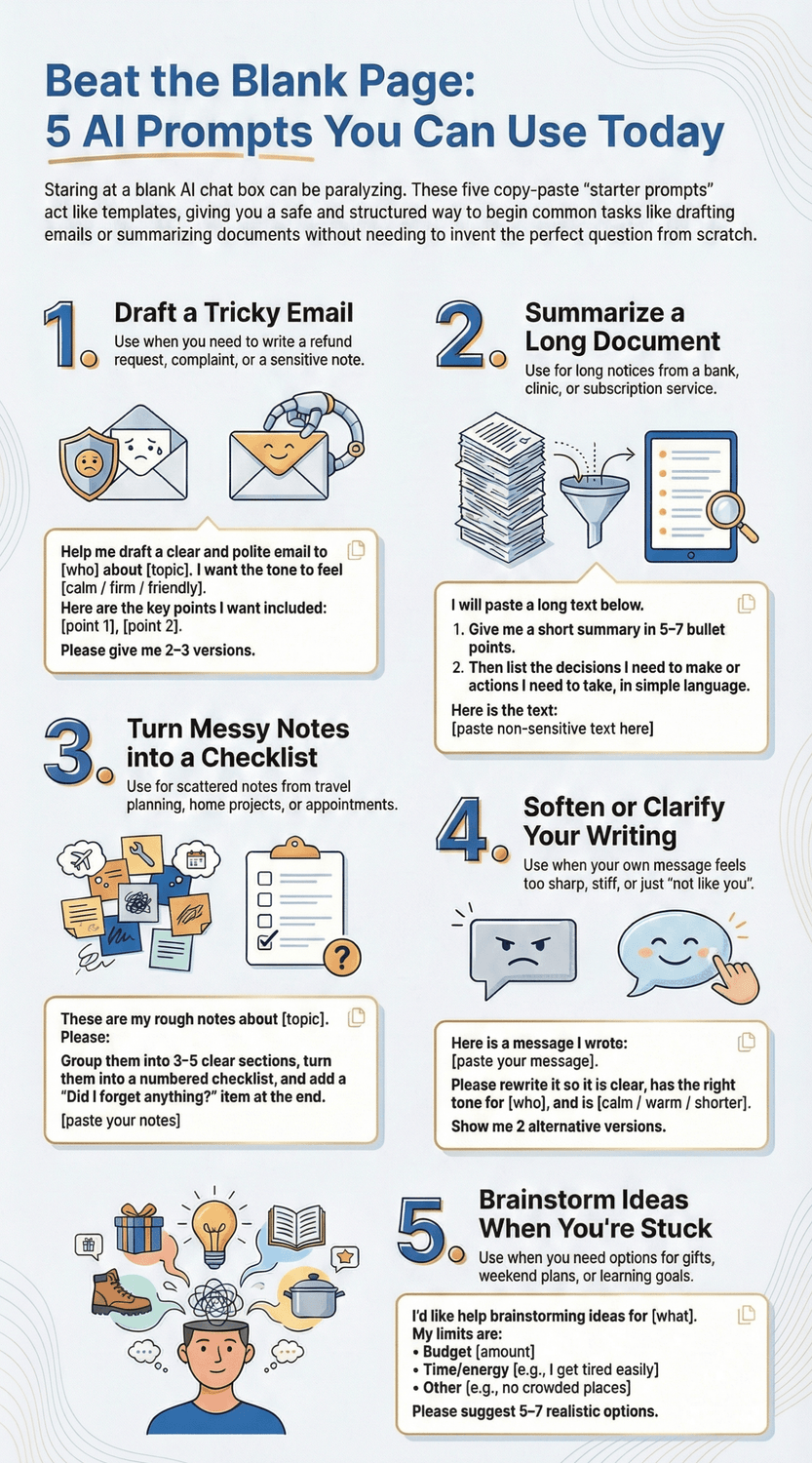
1. Drafting a tricky email
Use when: You need to write a refund request, a complaint, or a sensitive note to family or coworkers.
Copy-paste prompt:
Help me draft a clear and polite email to [who – e.g. my internet provider] about [topic – e.g. an incorrect charge].
I want the tone to feel [calm / firm / friendly / professional].
Here are the key points I want included:
– [point 1]
– [point 2]
– [point 3]
Please give me 2–3 versions I can choose from.
“Is it okay to let AI touch my emails?” That’s a fair question. Surveys from Microsoft and LinkedIn show that many workers already use AI to draft messages, but still review and edit before sending, keeping control of the final text (Microsoft, 2024). That’s exactly how you should treat it: a first draft helper, not an automatic send button.
2. Summarizing a long document or PDF
Use when: You get a long notice from a bank, clinic, or subscription service.
Copy-paste prompt:
I will paste a long text below.
Give me a short summary in 5–7 bullet points.
Then list the decisions I need to make or actions I need to take, in simple language.
Use everyday wording, as if you’re explaining it to a friend my age.
Here is the text:
[paste non-sensitive text here]
Remember: do not paste full account numbers, ID codes, or highly sensitive health details. Replace them with labels like “[account number]” or “[medical result]”.
3. Turning messy notes into a simple checklist
Use when: You have scattered notes from travel planning, home projects, or appointments.
Copy-paste prompt:
These are my rough notes about [topic – e.g. planning a weekend trip / preparing questions for my doctor]:
[paste your notes]
Please:
– Group them into 3–5 clear sections
– Turn them into a numbered checklist
– Add one or two “Did I forget anything?” items at the end so I can fill them in myself.
This helps when your head feels full and you just want someone to tidy it up a bit.
4. Softening or clarifying something you already wrote
Use when: Your email feels too sharp, too stiff, or just “not like you.”
Copy-paste prompt:
Here is a message I wrote:
[paste your message]
Please rewrite it so it is:
– Clear and easy to understand
– The right tone for [who – e.g. my boss / my neighbour / my adult child]
– [calm / warm / firm but polite / shorter]
Show me 2 alternative versions.
You stay in charge: if something sounds off or “not like your voice,” you adjust it.
5. Brainstorming ideas when you feel stuck
Use when: You need options: gifts, weekend plans, learning goals, ways to simplify your week.
Copy-paste prompt:
I’d like help brainstorming ideas for [what – e.g. a simple birthday gift / a relaxing weekend / 3 skills to learn this year].
Here are my limits:
– Budget: [amount, or “very low”]
– Time/energy: [e.g. I get tired easily / I only have weekends]
– Other preferences or limits: [e.g. no crowded places / must be online]
Please suggest 5–7 realistic options that would suit someone in their [age range].
“Isn’t this too simple?” That’s the point. When researchers talk about “choice overload,” they highlight that having a small set of tailored options often feels better than endless scrolling (Iyengar & Lepper, 2000). Starter prompts give you just enough structure so you can decide calmly.
The Key Takeaway
These five prompts are your “starter kit” for everyday tasks.
Copy, paste, fill in the brackets, and let the AI handle the heavy lifting while you stay in control of the final result.
How do you safely customize these prompts with your own details?
You have a great starter prompt on the screen, and then you stop.
“What can I safely write here? Can this thing ‘see’ my private life?”
That hesitation is not paranoia. Surveys from AARP (2025) and earlier privacy studies from AARP (2021) show that people over 50 consistently name privacy, fraud and data misuse as top worries when using new tech. It is completely reasonable to pause before you paste anything into an AI box.
So, how do you actually use these prompts without oversharing?
A simple rule of thumb is the “postcard test.”
If you would not feel comfortable writing a detail on a postcard that anyone along the way might read, do not put that detail into a public AI tool. Independent security guides strongly advise against sharing things like full ID numbers, account details, passwords, or confidential company material with generative AI, because the data may be stored or reused. TechInformed (2024)
Instead, you keep the structure of the prompt and “blur” the sensitive parts. For example:
“my bank” instead of the full bank name
“[account number]” instead of the actual digits
“my clinic” instead of the exact hospital and department
Information security teams, such as those at University of Oxford (2024), recommend exactly this kind of anonymisation and data minimisation when using external AI services.
“But will the answer still be useful if I hide those details?”
Most of the time, yes. For tasks like drafting an email, summarising a PDF, or turning notes into a checklist, the tool mainly needs the shape of the situation, not every identifying fact. You can always add or correct specific names yourself before you send or save anything.
The other safety piece is about trusting the answer. Researchers like Bender et al. (2021) describe large language models as “stochastic parrots,” meaning they can produce fluent text that still contains errors or outdated information. That is why it helps to treat AI as a smart draft assistant, not as a doctor, lawyer or financial adviser.
For anything important, you:
Use AI to create a first draft or a list of questions
Check facts against trusted sites or official documents
Ask a human professional when it involves money, law, or health
On the positive side, AI can also help you spot trouble. New education efforts from OpenAI & AARP (2025) show older adults how to use tools like ChatGPT as a “second pair of eyes” to review suspicious emails or messages for scam signs. You stay in charge, but you are not alone.
It is normal to feel unsure at first. Start with low-risk tasks like trip planning, hobbies, or rewriting something you could comfortably show a neighbour. As your confidence grows, you will get a feel for what level of detail is “just enough” for the tool to help.
The Key Takeaway
Keep the prompts, blur the sensitive bits, and treat AI as a draft partner, not a final authority.
That way you get the benefits of everyday help without handing over more personal data or trust than you intend.
How can you turn templates into your own confident AI conversations?
Let’s say you copy one of the prompts from this guide into your AI tool.
It gives you a reply that is… close, but not quite right.
This is the turning point where many people think, “Well, that did not work,” and close the tab. That quiet belief that the first answer has to be perfect is what I call the “one shot” myth. In reality, most people who get strong results treat AI like a back and forth conversation, not a vending machine.
A recent summary from MIT Sloan Management Review (2025) explains that differences in how people prompt and refine answers account for a big part of the performance gains, sometimes as much as switching to a “better” model. In other words, it is not just which AI you use, it is how you talk to it and how you follow up.
So what does that look like in real life?
You paste a starter prompt for an email. The AI writes something helpful but a bit too formal.
Your next message might be:
“Make this shorter and friendlier.”
“Keep the structure, but rewrite it for someone who is stressed and short on time.”
Research on design tools like PromptInfuser shows that this kind of iterative loop, where people critique and improve the AI’s output step by step, leads to noticeably better results and deeper learning about the task itself Petridis et al. (2023). You are not being “picky”. You are doing exactly what skilled users do.
“Am I allowed to just ask for changes like that? Or will it annoy the system?”
It will not. These tools are built for follow up questions. The 2024 Work Trend Index from Microsoft and LinkedIn (2024) notes that people mainly use generative AI at work to draft, edit and refine content, which naturally involves several rounds, not a single prompt.
Here is a simple pattern you can use with any of the templates:
First pass: Use the copy paste prompt and fill in the brackets.
Second pass: Notice what feels “off”. Too long? Too cold? Too complicated?
Third pass: Tell the AI exactly that. “Shorten to 150 words.” “Use more everyday language.” “Give me only 3 options, not 10.”
It is normal to feel shy about “talking back” to a computer at first. If that is you, start by changing one thing at a time. For example: “Keep everything, just make it sound calmer.” Then, in your next message, maybe: “Now give me a version that is more direct.”
Over time, you will spot patterns that work for you. Maybe you often say “shorter, friendlier, clearer” or “turn this into a checklist”. That is your cue to save those phrases. Many people find it helpful to keep a simple “prompt notebook” in a document or notes app with:
Their favourite starter prompts
A few useful follow up phrases
Real examples that turned out well
“When do I stop?” A good rule is: stop when the result feels like something you would actually send, say, or use, with only small edits. You are training the conversation, not trying to get magic on the first try.
The Key Takeaway
Templates get you started, but the real power comes from the small follow up requests you make.
Treat AI like a conversation, save the versions that work, and your prompts will slowly start to sound less like “scripts” and more like your own confident voice.

What’s your next step if you want more “done-for-you” prompts and safety tips?
Tomorrow morning you sit down with your coffee, open an AI chat, and instead of freezing, you simply paste one of “your” prompts and get a useful first draft back. No guesswork. No performance pressure. Just a small sense of “oh, that actually helped.”
That is the kind of everyday win we are aiming for here.
Older adults often say they want AI to feel like a supportive helper, not a mysterious decision maker. Recent AARP research on AI shows that many people over 50 are interested in the benefits but still feel cautious about privacy, misinformation, and control, and would rather keep AI in a clearly supportive role. AARP (2025) That is exactly what these prompts are designed to do. They help you stay firmly in the driver’s seat.
At the same time, workers of all ages are quietly turning AI into a normal part of everyday tasks. The 2024 Work Trend Index from Microsoft and LinkedIn reports that around three quarters of global knowledge workers are already using generative AI at work, often for drafting, summarising, and catching up on information. Microsoft & LinkedIn (2024) You are not “behind”. You are simply in the stage of turning curiosity into a few reliable habits.
So, what is a realistic next step for you?
“Do I really have to learn dozens of prompts now?”
No. Start with one. Choose the prompt that feels most useful this week. Maybe it is:
the email helper
the PDF summariser
or the “turn my notes into a checklist” prompt
Use it once, then once more in a different situation. Notice how it feels. What would you tweak next time so it sounds more like you?
If you like, print the five prompts or save them in a note on your phone or laptop. That way you do not have to remember anything when you are tired or busy. You just copy, paste, and adjust a few words. Over time, those tiny repetitions are what build real confidence.
You might also be thinking, “I still worry about scams and safety.” That concern is valid, and you are not alone. New education efforts from OpenAI and AARP focus exactly on helping older adults use tools like ChatGPT to spot scam signals and stay safer online, treating AI as a second pair of eyes rather than something to fear. OpenAI (2025)
Most of all, remember this: you do not need to “become an AI person”. You only need a small set of tools that reduce friction in your actual life. One helpful email draft. One clear summary of a long document. One tidy checklist from chaotic notes. That is enough to count.
The Key Takeaway
Your next step is not to master everything.
It is to pick one prompt, try it on one real task, and keep what works.
From there, you can slowly build your own small library of safe, trustworthy prompts that support the way you already live and work.
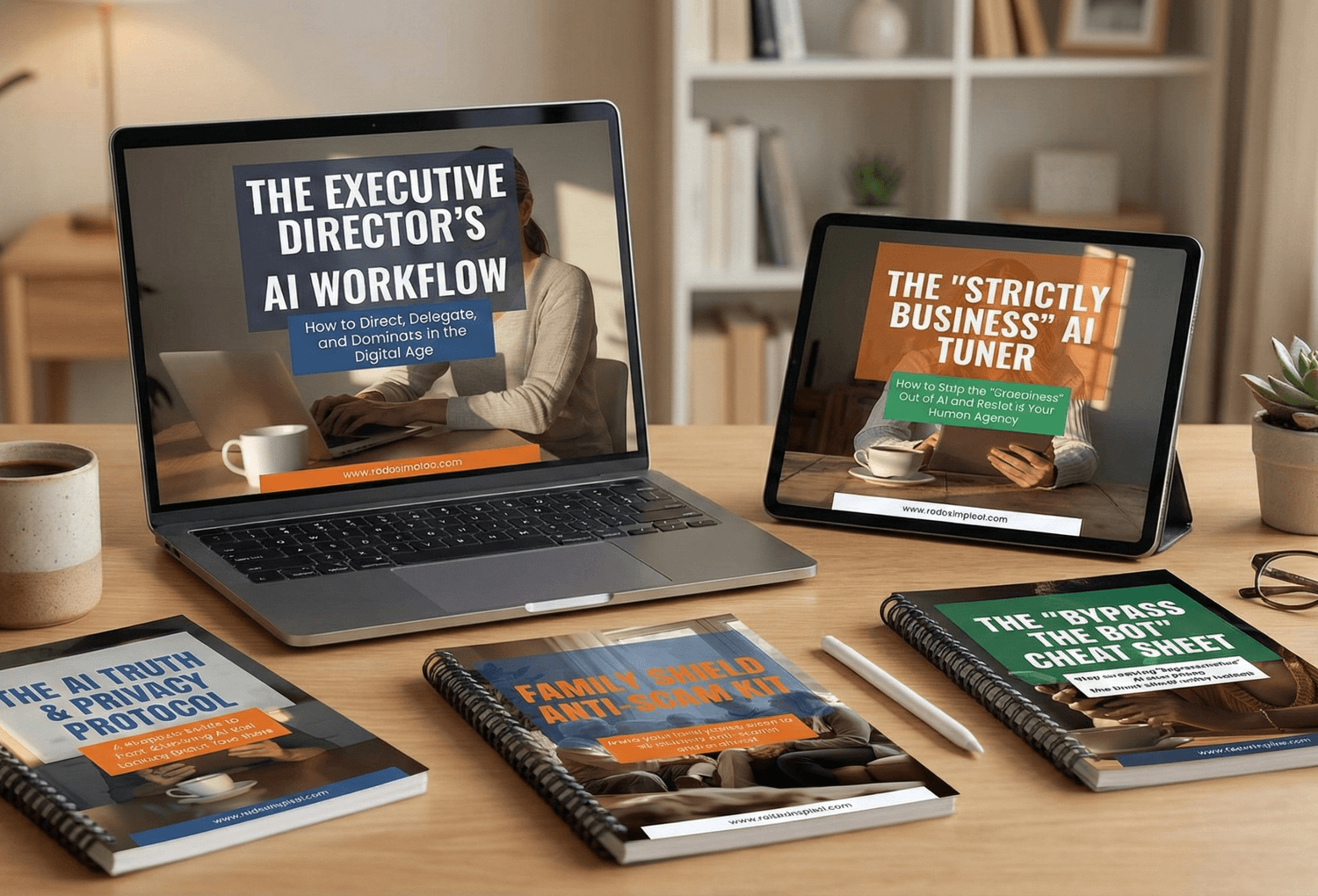
🎓 Your "Tech Dignity" Toolkit
Ready to stop surviving the AI era and start owning it? I’ve built a library of resources specifically designed to help you stay safe, stay professional, and stay in control. Whether you want to fix a specific problem or master the whole machine, start here:
[FREE] The "Bypass the Bot" Bundle: Stop screaming at automated phone menus. Get the secret codes and scripts to reach a human every time. Download for FREE Here
Secure Your Family: Protect your loved ones from AI voice clones and deepfake scams with the Family Shield Anti-Scam Kit. Get Protected for $9
Upgrade Your Career: Use my "Strategy Sandwich" method to delegate grunt work to AI while keeping your professional edge with the Executive Director’s AI Workflow. Reclaim Your Time Here
Lock Down Your Privacy: Interrogate the "black box" and secure your data with the AI Truth & Privacy Protocol. Secure Your Data Here
Tame the Machine: Strip the "creepy" fake empathy out of AI and turn it into a silent tool with the "Strictly Business" AI Tuner. Take Control Here
The Ultimate Shortcut: Want the entire library? Secure your digital future with the Complete Mastery Collection (all products bundled for about 57% off). Get the Full Collection Here
Frequently Asked Questions
Q1) Do I need to understand “prompt engineering” to use these templates?
No. These starter prompts are designed so you do not need any special jargon. You just fill in the brackets with your details. Over time, you will naturally notice phrases that work well for you, but you never have to study prompt engineering to get value from basic drafting, summarising, and organising tasks.
Q2) Is it safe to paste parts of emails or PDFs into an AI tool?
It can be safe if you are careful. Follow the postcard test and avoid sharing anything you would not be happy to put on a postcard: full ID numbers, full account details, passwords, or very sensitive health information. Privacy experts recommend anonymising and minimising data when using public AI tools TechInformed (2024).
Q3) What if the AI summary of my document misses something important?
That can happen. Large language models are powerful, but they are not perfect. You can ask follow-up questions like “Did you see any deadlines or dates I should note?” and always skim the original for anything critical. For serious decisions, treat the AI summary as a shortcut, not a replacement for the original text.
Q4) Can I use these prompts in different AI tools, or only in ChatGPT?
You can use them almost anywhere that has a chat box: ChatGPT, Copilot, Gemini, or other assistants. The exact buttons and file upload options may vary, but the core idea of a copy-paste prompt that you customise works across tools because they all rely on natural language input.
Q5) How do I know if an AI reply is “good enough” to send?
A simple checklist helps: Does it sound like something you would say? Is it clear and polite? Does it match the facts as you understand them? If the answer is “yes” on all three, it is usually safe to send after your final proofread. If anything feels “off”, ask the AI to adjust it or change that part yourself.
Q6) I am still worried about scams that use AI, like fake voice calls or emails. Can these prompts help with that?
Yes. You can use similar structures to ask AI to check suspicious messages for warning signs, as suggested in the OpenAI–AARP safety materials OpenAI & AARP (2025). For example: “Here is an email I received; list reasons it might be a scam in simple language.” This does not replace your judgement, but it gives you a second opinion.
Q7) How can I remember and reuse the prompts without digging through old notes?
Create a simple “Prompt Notebook”: a document, note, or even printed page where you store your favourite templates and a few follow-up phrases like “make it shorter, friendlier, clearer” or “turn this into a checklist.” Many adults 50+ say that having these written down nearby makes them much more likely to actually use AI in daily life AARP (2024).
Sources
Caneel Joyce — The Blank Page: Effects of Constraint on Creativity (2009).
Northern Illinois University — Instructional Scaffolding to Improve Learning (2015).
John Sweller — Cognitive Load During Problem Solving: Effects on Learning (1988).
Sheena S. Iyengar & Mark R. Lepper — When Choice Is Demotivating: Can One Desire Too Much of a Good Thing? (2000).
Microsoft & LinkedIn — 2024 Work Trend Index Annual Report (2024).
Emily M. Bender et al. — On the Dangers of Stochastic Parrots: Can Language Models Be Too Big? (2021).
TechInformed — Five Best Practices to Protect Your Data Privacy When Implementing Gen AI (2024).
University of Oxford — Use Generative AI Services Such as ChatGPT Safely (2025).
Savvas Petridis et al. — PromptInfuser: How Tightly Coupling AI and UI Design Affects Designers’ Workflows (2023).
MIT Sloan Management Review — Study: Generative AI Results Depend on User Prompts as Much as Models (2025).
OpenAI & AARP —Partnering with AARP to Help Keep Older Adults Safe Online (2025).